




Text data can be a challenge to analyze. Even the word "data" usually makes me think about numbers, but a great deal of the data statisticians and quality professionals need to analyze is text.
Now, I majored in English as an undergraduate, so I find it very interesting to think about literature in terms of the data it contains. For instance, I'd love to treat Thomas Pynchon's The Crying of Lot 49 as a data set just to see what I could discover about the relative frequency of certain words and phrases -- but that's a project for another day.
So let's talk instead about the kinds of text data you might encounter in the course of a Six Sigma or similar quality improvement project. This might include long ID codes that include a letter, like "AB12345." It could include names, or dates. And depending on where your data are coming from, a lack of consistency and quality could be an issue.
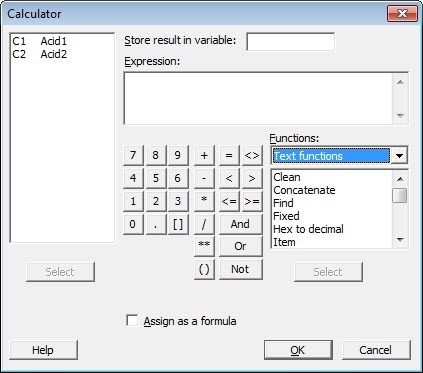
Here are three Text functions available in the Minitab calculator that I've found particularly useful.
1. LENGTH
Now I just need someone to enter every sentence Faulkner wrote into a data sheet...
2. ITEM or WORD
The ITEM function extracts the nth word from a string of text. Let's say you want to analyze sales per county for a given region, and you get sales records that display customer names and counties like this:
You could use the ITEM function to extract the 3rd word in each line of data, and Minitab's calculator would give you a list of county names. By default, one or more spaces define where each word begins and ends. You can specify other criteria for the separation between words, such as a comma, using an optional third argument, 'delimiters.'
3. LEFT
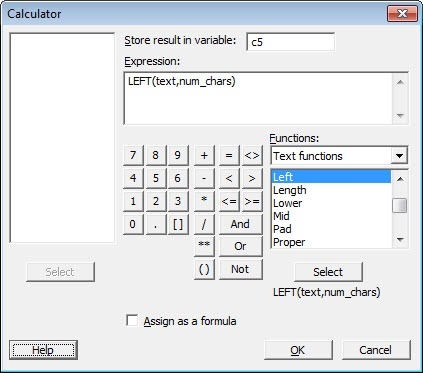
For text, you select the column of text values you want to extract characters from. For num_chars, enter the number of characters from the left you want to keep. So, if c1 contains both "Defective" and "Defect", entering LEFT (c1,3) will give you a new column of data that contains a consistent value: "Def".