




Minitab makes it easy to work with imported data in formats like TXT, DAT, and CSV so you don't have to use more than one program. Skip unnecessary Excel steps and prepare your data for analysis faster.
When working in CSV, DAT, or TXT files, many users open them in Excel before importing them into Minitab—but that step is unnecessary. Importing data files from online into Excel can sometimes prove to be a problem, but Minitab can import them directly, helping you prepare your data for analysis faster!
why import data directly into minitab?
Importing the files directly helps to streamline the data preparation process, allowing users to spend more time analyzing their data rather than preparing it. Doing this saves time, reduces possible formatting errors, and avoids unnecessary Excel edits.
However, if you want to continue to input data in Excel, you can setup a more permanent connection that ensures Minitab automatically imports and updates that data, so you don't have to continuously copy and paste or go between the two.
Learn how to import data from Excel into Minitab Statistical Software.

Still, directly importing is always going to be your best bet. For example, take the results of a recent study about using a wearable sensor to measure how well human subjects could move from a sitting to a standing position.
The data are publicly available in CSV format, but with an interesting twist. Although CSV traditionally stands for “comma-separated values,” this data set uses semicolons as the separator between values in different variables.
If you open the data set in Excel, you’ll get something like this:
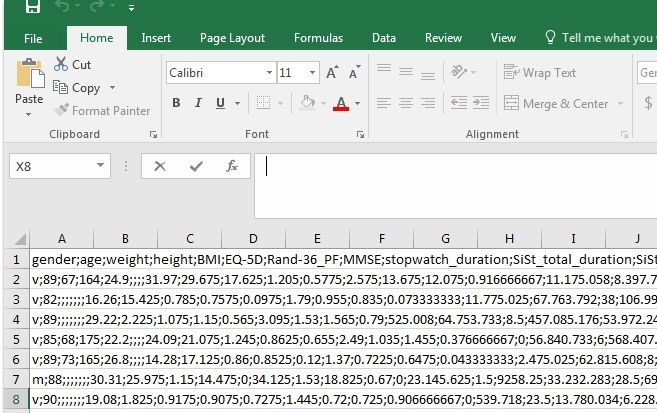
Because all of the data are opened in column A, they’re not ready to analyze. You could change all of the semi-colons to commas and reopen the data set...but it wouldn’t help. You could write formulas to separate the columns out yourself, but that’s at least 1 formula per variable, and there are 30 variables in this data set.
But if you’re planning to analyze the data in Minitab, fixing the data in Excel is unnecessary. In Minitab, all you have to do is identify that the data have column names and what the value separator is.
Minitab Data Import Tutorial
1. Go to File > Open and select your CSV
A dialog box like this will appear:
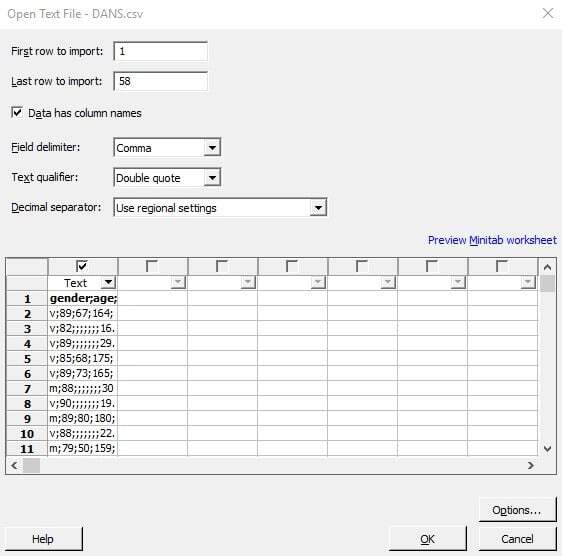
2. In the dropdown next to Field delimiter, change from "Comma" to "Semicolon."
The preview will show it's looking better already!
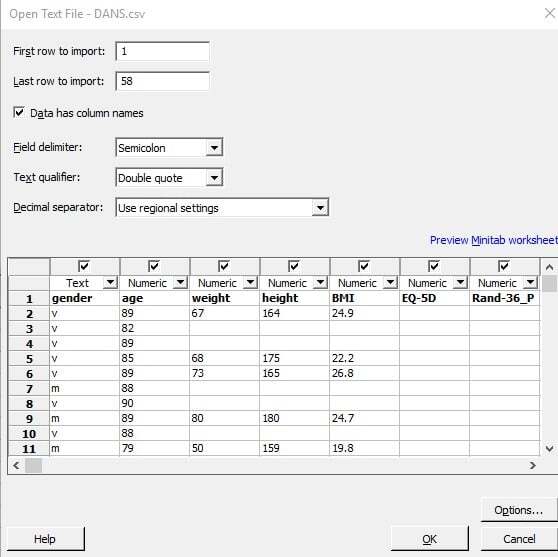
3. Hit OK. You'll get a note that this file is being added to your current project.
4. Hit OK again and you will see your new Minitab worksheet.
Whether you're importing CSV, TXT, or DAT files, Minitab makes it easy to prepare your data for analysis without first opening Excel. Importing data directly into Minitab saves time, reduces formatting steps, and lets you focus on uncovering insights sooner.
Use Minitab's E-learning resource Minitab Quick Start™ to easily begin importing and analyzing your data.
